
Apply to teach
Applying takes about half an hour. You write a bit about yourself, what you have taught before, and what you would like to teach here. A real person reads it and gets back to you.
Before you start
What you need
- About 30 minutes.
- An email address you can open right now.
- A rough idea of the first thing you would like to teach.
What you will have
- An application marked “in review”.
- Review updates on your application page.
- Access to the teaching tools once you are approved.
You do not have to finish in one sitting. There is a Save draft button, and you can come back to a half-finished application whenever you like.
Create your account
Go to Teach on TeachNow from the top of the website, or open the apply page directly. If you have never used Teachnow AI before, choose Sign up and make an account with your email address.
If you already have an account as a parent or a learner, just sign in with it. Applying to teach does not take away anything you already had — your existing courses and progress stay exactly where they are.
Verify your email
Near the top of the application you may see a note asking you to confirm your email address, with a Send verification email button. Click it, then open the email that arrives and click the link inside. Return to your application and select I’ve verified my email — check again. Your unsaved answers stay in place.
Your public profile
The first section of the form is headed 01 — Your public profile. This is the part students and parents will eventually see, so write it the way you would introduce yourself at a parents’ evening.
| Field | What to put | Notes |
|---|---|---|
| Legal name | Your full name as it appears on your ID. | Not shown publicly. Used for the review and, later, for payments. |
| Public instructor name | The name students will see. | Can be “Ms Priya” or “Priya Sharma” — whatever you are comfortable being called in class. |
| Country | Where you live. | Used to work out which payment options and support you get. |
| Timezone | The timezone you will teach in. | Type it the way the example shows, for instance Asia/Kolkata or America/Los_Angeles. |
| Professional bio | A few paragraphs on who you are and why students should learn this from you. | Needs to be at least 40 characters — in practice, aim for 4–6 sentences. There is a counter under the box. |
Teaching experience
Section 02 — Teaching experience asks five things. Three of them are typed as short lists, separated by commas — so “algebra, geometry, statistics” counts as three separate entries.
| Field | What to put | Limit |
|---|---|---|
| Areas of expertise | The subjects you can teach, separated by commas. | Up to 12. |
| Learner levels | Who you teach, separated by commas — for example “grade 6, grade 7, beginner adults”. | Up to 12. |
| Teaching experience | A short paragraph on where and how long you have taught. | At least 20 characters, so at least a full sentence. |
| Teaching languages | The languages you can teach in, separated by commas. | Up to 8. |
| Portfolio links | Web addresses for anything that shows your work — a school page, a YouTube channel, a blog. | Up to 5. Each one must start with http:// or https://, or the form will not accept it. |
Your first course
Section 03 — Your first course is one box: “What would you like to teach first?” Write at least a few sentences — the form needs about 30 characters minimum, but a one-line answer is the most common reason an application comes back asking for more.
Answer these three things and you will have written plenty:
- What is the subject, and who is it for?
- How many weeks would it run, and how long is each class?
- What should a student be able to do by the end that they could not do at the start?
Underneath there are two boxes you have to tick:
- That you are at least 18 years old.
- That you agree to the instructor standards and platform terms.
Submit for review
When everything is filled in, click Submit for review. If the button does not seem to work, scroll back up: the form highlights whatever is missing or too short.
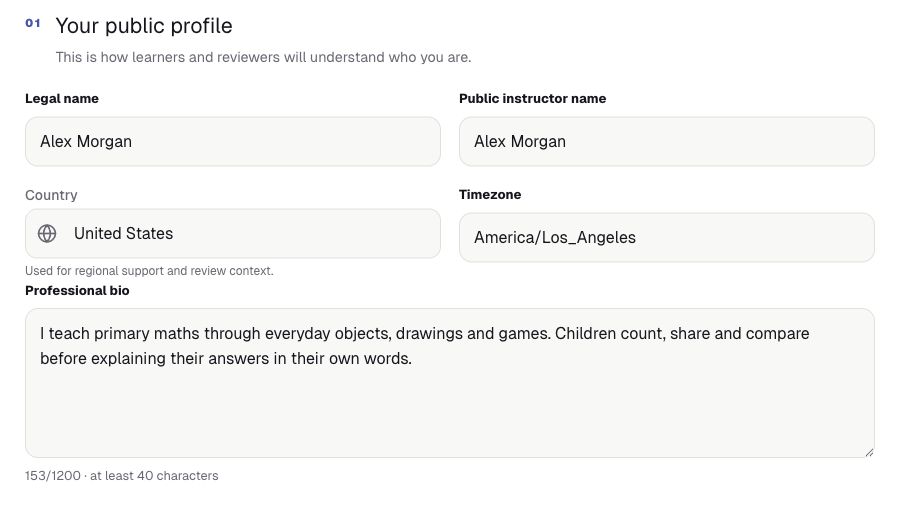
Section 01 — Your name, country, timezone and bio, shown with sample answers.
What happens after you submit
Your application goes into a queue and a member of the team reads it. While it is being read, your answers are locked so nobody changes them halfway through the review. You will see one of these five states on the apply page. Review times vary; decision emails are not currently sent. Your submitted answers remain available to read.
| What you see | What it means | What to do |
|---|---|---|
| Your application is in review | It has been sent and nobody has decided yet. | Check your application page for updates. It refreshes automatically while open; you can also select Check status. |
| We need a little more information | The reviewer has a question. Their message appears on the page. | Your form unlocks. Answer what they asked and submit again. |
| You’re approved to teach | You are in. | Your teaching workspace opens up. Carry on to the next guide. |
| Application update | The application was not accepted this time. | The form reopens as a draft. You can rewrite it and apply again. |
| Instructor access is suspended | Teaching access has been paused on an approved account. | Read the reviewer’s message and follow its instructions. A new application will not restore suspended access. |
What you get when you are approved
Your account gains a teaching side: a teaching workspace where you build courses and create classes that students can join. Everything you had before as a parent or learner stays exactly as it was.
Troubleshooting
The submit button does nothing
Almost always an unconfirmed email address. Look for the verification banner at the top of the form and send yourself the email again.
It says my bio is too short but it looks long enough
The counter under the box shows exactly how many characters you have written and the minimum you need. Spaces count. If you are near the line, add a sentence.
One of my links was rejected
Links have to be complete web addresses starting with https://. Typing “myschool.edu” on its own will not be accepted — write https://myschool.edu instead.
I cannot edit my application any more
That is deliberate while it is being reviewed. It unlocks again if the reviewer asks you for more information, or if the application is not accepted.